Free step-by-step guide

How to Add a Signature to a PDF
Step-by-Step Guide

Learn how to add signature fields to any PDF document, collect signatures from others, and download completed signed copies. Multiple methods compared.

No credit card required · Works on any device

Recommended

Method 1: Add signature fields with GoodSign

The most complete method. Upload your PDF, place signature fields exactly where you need them using a visual drag-and-drop designer, then send to signers or sign yourself.

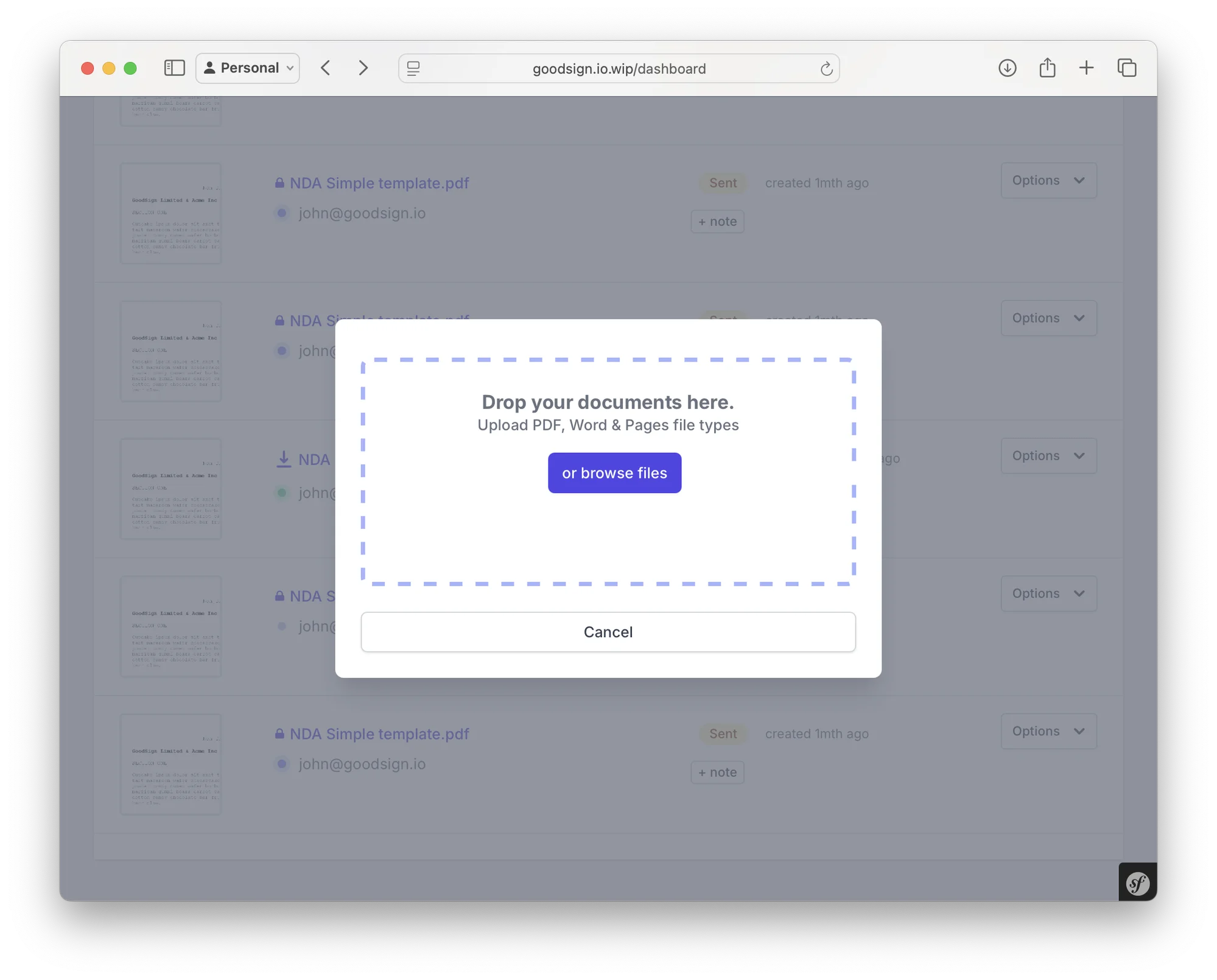
1

Upload your PDF

Create a free GoodSign account and upload the PDF you need signed. You can also upload Word documents or images — they are converted to PDF automatically.

2

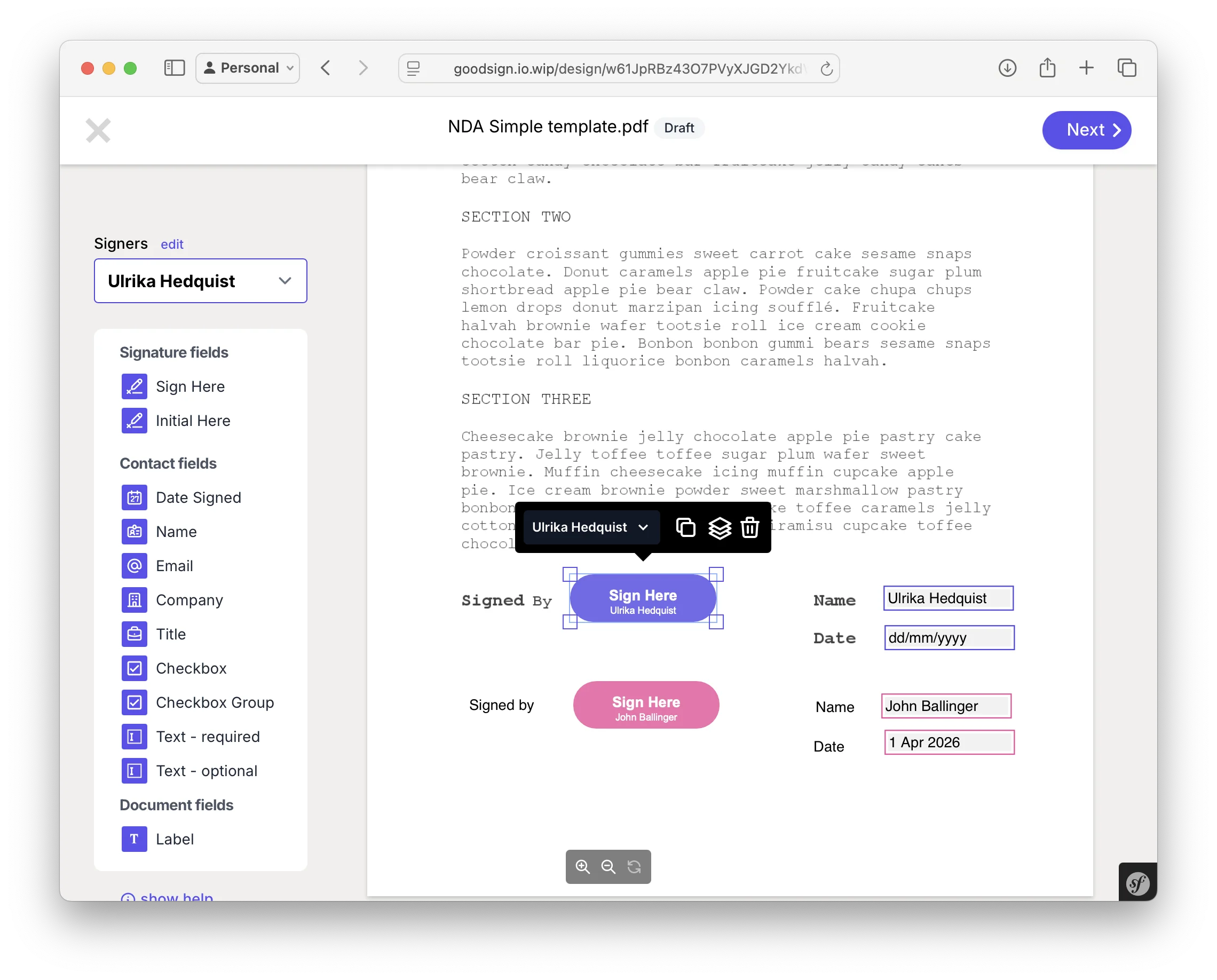
Place signature fields with the visual designer

Use the drag-and-drop field designer to place signature fields, date fields, text boxes, checkboxes, and initials anywhere on your document. Assign each field to a specific signer if you have multiple recipients. Resize and position fields with pixel-perfect precision.

3

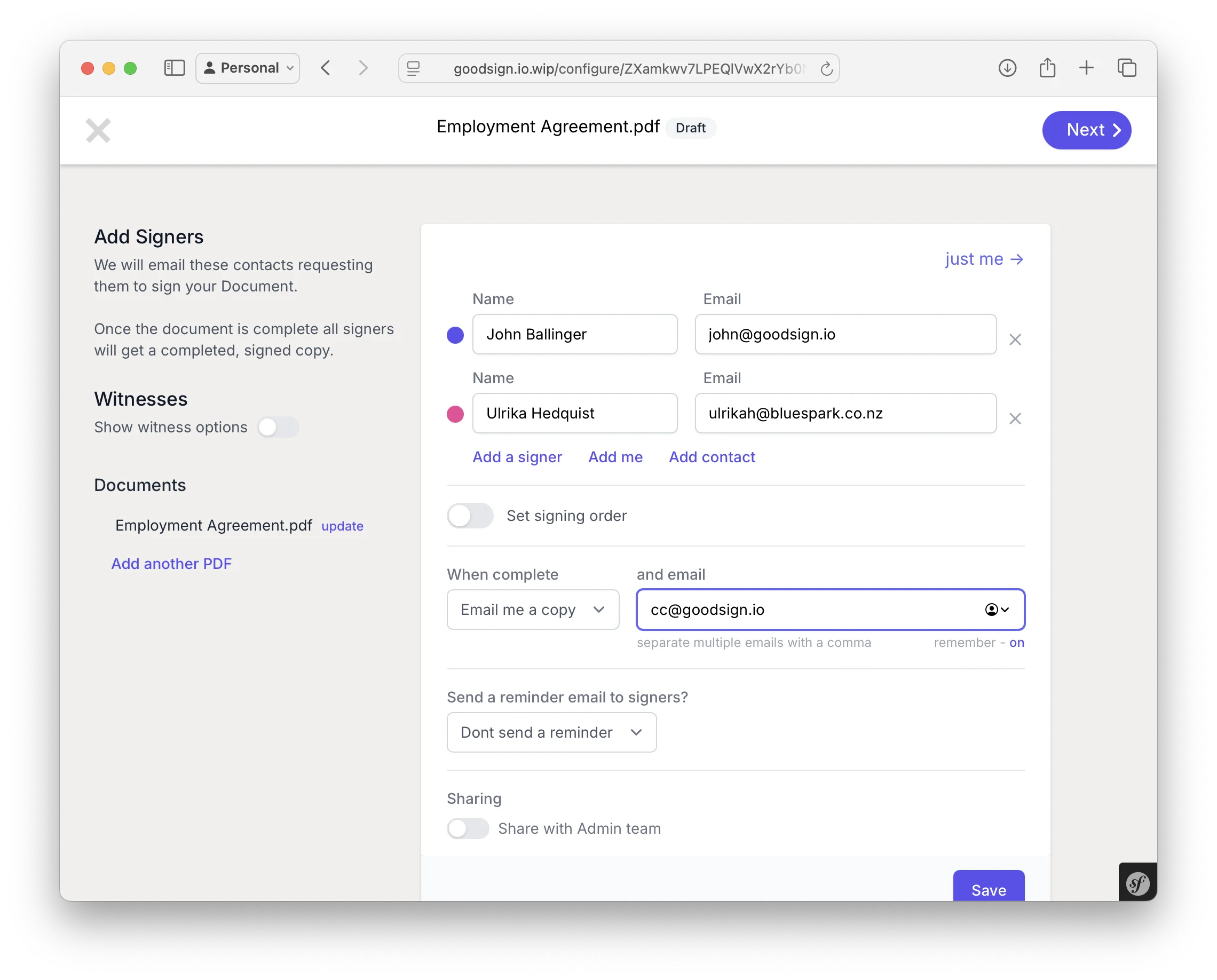
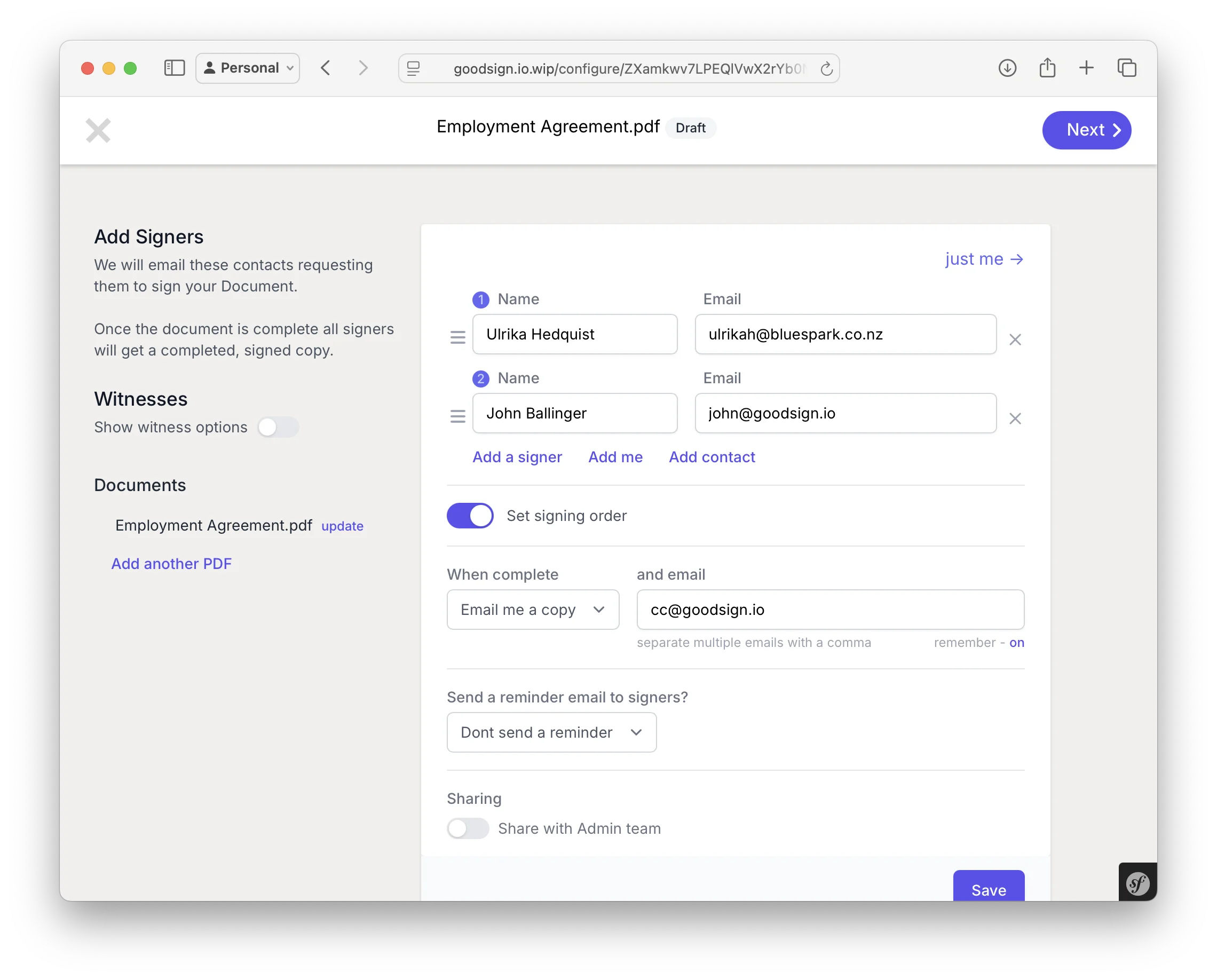
Send to signers or sign yourself

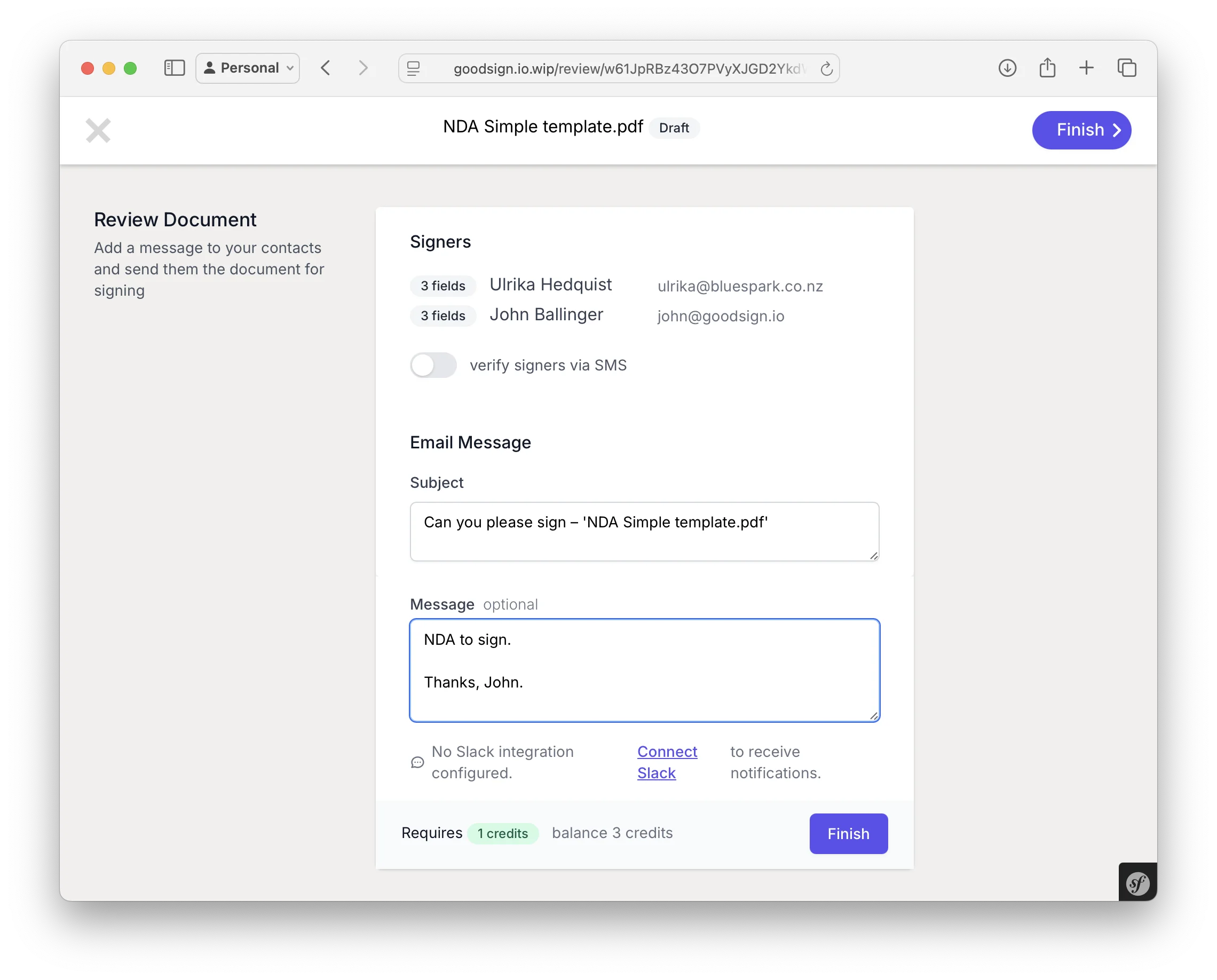
Add your signers' email addresses and send. Each signer receives a secure link to review and sign the document in their browser. Or choose to sign the document yourself if you are the only signer. Signers can draw, type, or upload their signature.

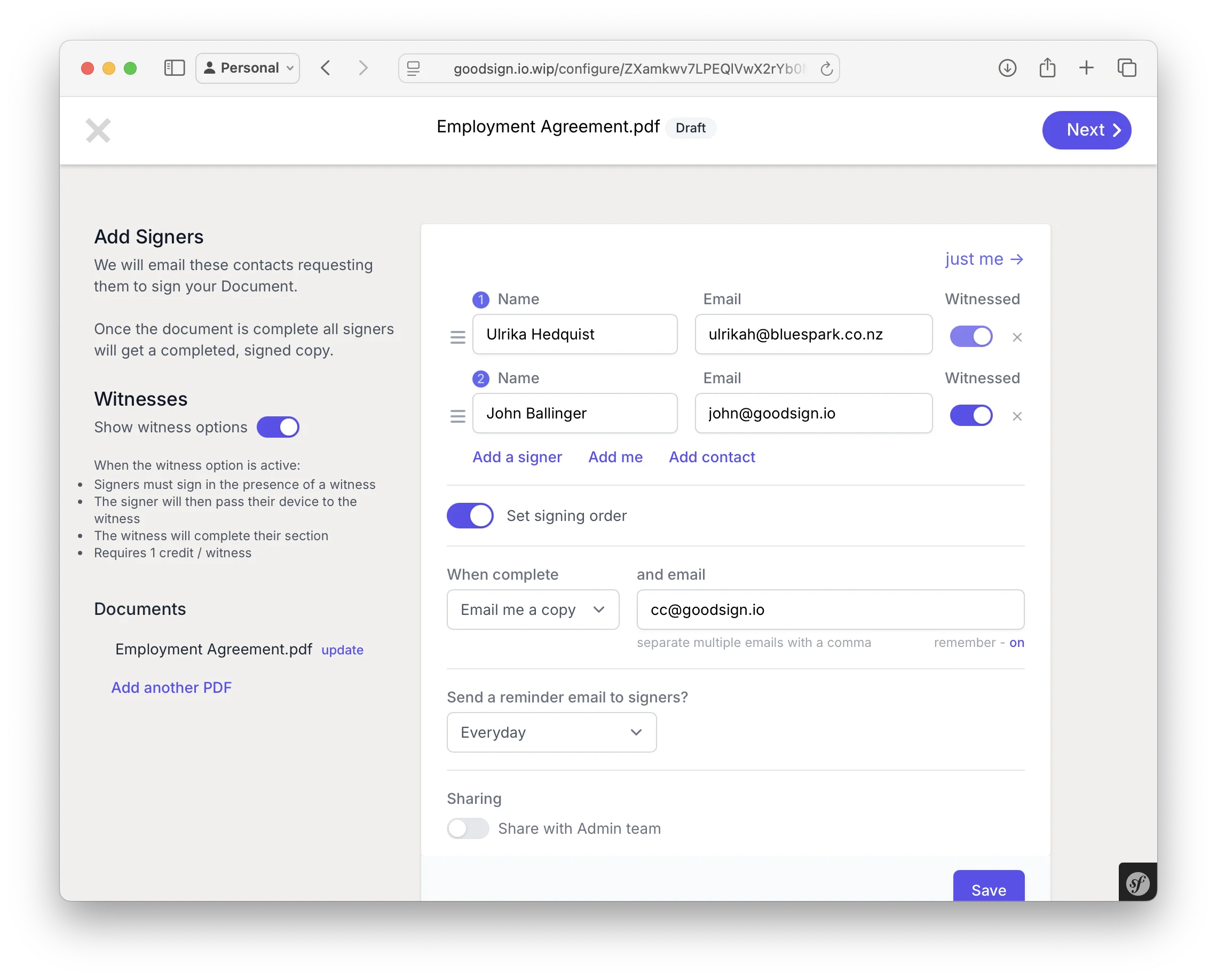
4

Download the signed PDF

Once everyone has signed, download the completed PDF. The document is flattened and tamper-proofed, with a full audit trail recording every action — who signed, when, and from where.

Method 2: Adobe Acrobat

Adobe Acrobat Pro lets you add signature fields using the Prepare Form tool. This method requires a paid subscription and desktop software.

1

Open your PDF in Acrobat Pro

Launch Adobe Acrobat Pro and open your PDF. You need the Pro version — the free Reader does not support adding form fields.

2

Use the Prepare Form tool

Navigate to Tools, then Prepare Form. Acrobat will scan your document and may auto-detect fields. You can then manually add digital signature fields from the toolbar.

3

Send for signature via Acrobat Sign

Use Adobe Acrobat Sign (an additional subscription) to send the document to recipients for signing. Alternatively, save the form and distribute it manually.

Method 3: Mac Preview

Apple's Preview app lets you add your own signature annotation to a PDF. However, it does not support placing fields for others to sign.

1

Open the PDF in Preview

Double-click your PDF to open it in Preview (the default PDF viewer on Mac).

2

Open the Markup toolbar and click Signature

Click the Markup button (pen icon) in the toolbar, then click the Signature icon. Create a new signature using your trackpad, camera, or iPhone.

3

Place and save

Click your saved signature to place it on the document. Drag to reposition and resize. Save the file — your signature is now embedded as an annotation.

Comparison: Which method is right for you?

Each method has different strengths depending on what you need to accomplish.

Feature GoodSign Adobe Acrobat Mac Preview
Place signature fields for others Yes Yes (Pro only) No
Sign the document yourself Yes Yes Yes
Send to multiple signers Yes Yes (Acrobat Sign) No
Audit trail Full audit trail With Acrobat Sign None
Tamper-proof PDF Yes Yes No
Additional form fields Text, date, checkbox, dropdown Yes (Pro only) No
Pricing Pay per document, no subscription Monthly subscription Free (Mac only)
Works on any device Yes (browser-based) Desktop + mobile app Mac only

Adding signature fields vs. signing a PDF yourself

There is an important difference between these two actions, and it changes which tool you should use.

Adding signature fields

You are preparing a document for other people to sign. You place fields on the PDF to tell signers where to put their signature, initials, date, and other information. This requires a dedicated e-signing platform like GoodSign or Adobe Acrobat Sign.

Signing a PDF yourself

You are placing your own signature onto an existing document. You can do this with GoodSign, Mac Preview, Adobe Reader, or many other tools. However, the signature is just an annotation — not a legally tracked, tamper-proof signature with an audit trail.

If you need to collect signatures from others with a full audit trail and legal enforceability, you need signature fields — not just annotations. GoodSign makes this easy with a visual designer that lets you place any field type on any page. Sign a PDF online or send documents for signature.

Frequently asked questions

Everything you need to know about adding signatures to PDF documents.

Yes. GoodSign lets you create an account for free and only charges per document sent. You can upload a PDF, place signature fields using the visual designer, and send it for signature. Signers never pay anything.

A signature annotation (like what Mac Preview creates) is an image placed on top of the PDF. It has no audit trail, no identity verification, and no tamper protection. A signature field (like those created in GoodSign) is a designated area on the document where a signer must provide their signature through a tracked, secure process with full legal defensibility.

Absolutely. With GoodSign, you can add as many signature fields, initials fields, date fields, text boxes, checkboxes, and dropdown menus as you need. Assign each field to a specific signer when you have multiple recipients.

No. Signers receive an email with a secure link and sign directly in their browser on any device. There is no account to create, no app to download, and no software to install.

When added through a proper e-signing platform like GoodSign, yes. Electronic signatures are legally binding under the ESIGN Act (US), eIDAS (EU), and equivalent legislation worldwide. The key is having a proper audit trail with timestamps, IP addresses, and identity attribution. Simple image annotations (like Mac Preview) may not hold up in a legal dispute.

Yes. GoodSign works in any mobile browser. Upload your PDF, place fields, and send — all from your phone or tablet. Signers can also sign from their mobile device.

GoodSign accepts PDF, Word (.doc, .docx), and common image formats (PNG, JPG). All files are converted to PDF automatically. You can then place signature fields on any page of the document.

Ready to add a signature to your PDF?

Upload your document, place signature fields, and send for signing in minutes. No subscription, no software to install.

Get Started Free

No credit card required · Set up in 30 seconds

All rights reserved © GoodSign Limited 2026
2 Stuart St, Ponsonby, Auckland 1011, New Zealand..